



2024 Core Conversion Core Banking System Upgrade
Online Banking System Upgrade
Open Bank is pleased to announce that we will be undergoing a system upgrade that will provide our clients with a better online banking experience.
Beginning Tuesday, November 12, 2024, you will be logging into the new online banking site. Log in using your existing User ID and the temporary password (see temporary password below). You will be prompted to change your password and need to complete the Advanced Login Authentication, which requires the receipt of a phone call or text message to obtain a security code.
User ID: Use your existing User ID. Note: The User ID is no longer case-sensitive.
Temporary Password: 5-digit zip code + last 4 digits of SSN/Tax-ID
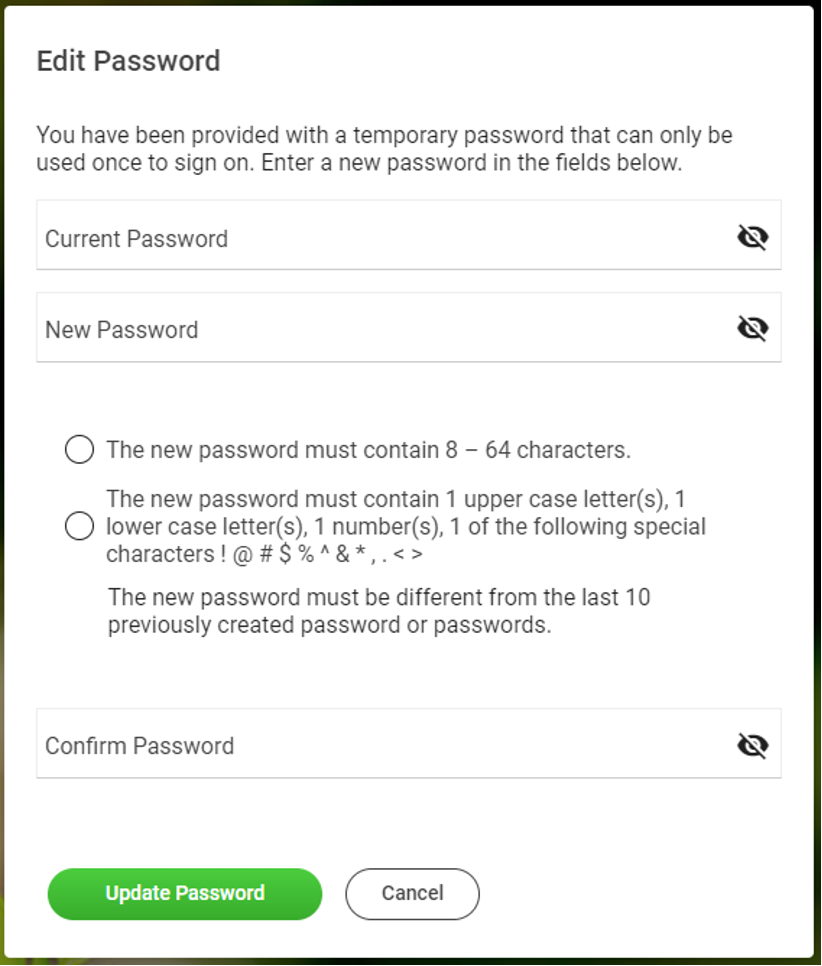
Note: The requirements for your new password are: (i) at least 8 characters long, (ii) contain at least 1 number, (iii) contain at least 1 special character (i.e. !@#$%^&), (iv) contain at least 1 capital letter, and (v)contain at least 1 lower-case letter. Please note your password is case sensitive.
Important: Please ensure your phone number is up to date. This will allow you to login to the new system and complete Advanced Login Authentication, which requires receipt of a phone call or text message.
If you have any questions, please call us at (213) 892-9999 or contact your branch office during normal business hours.
Log-in Instructions
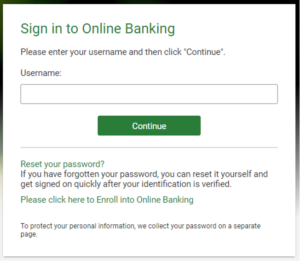
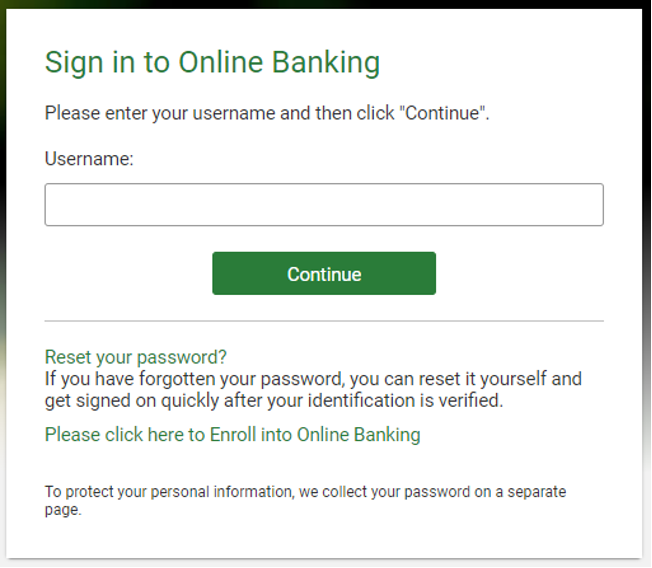
- Enter your existing User ID. Click continue.
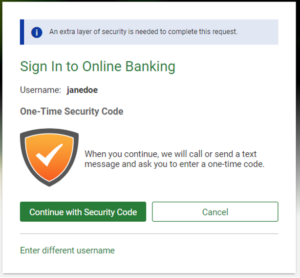
- You will be prompted to complete the Advanced Login Authentication. Click Continue with Security Code.
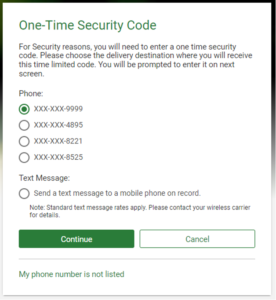
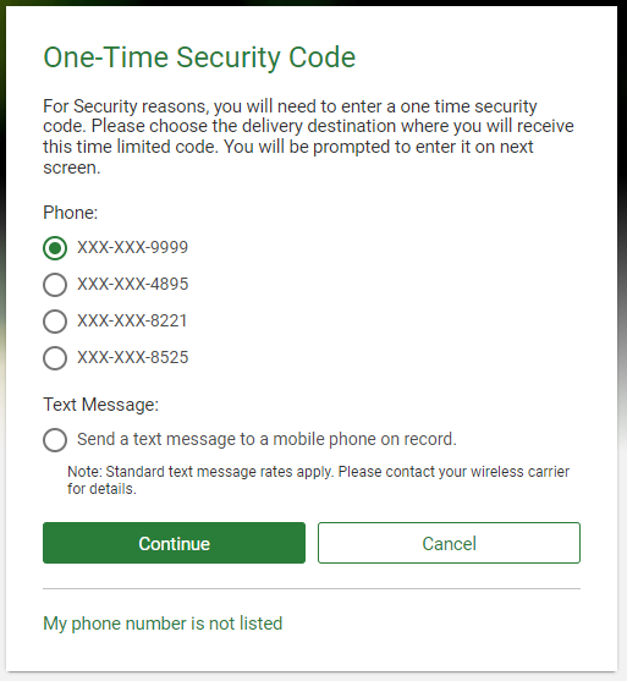
- You will select to receive either a phone call to a phone number on record or a text message to a mobile phone on record.
- For Phone call: You will receive a call from Open Bank (213)892-9999. Press 1 to continue in English. You will then say or enter the one-time security code displayed on the screen. Once you enter the security code, click Phone Call Completed.
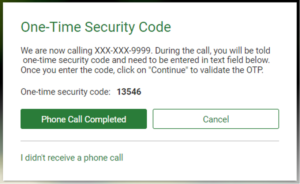
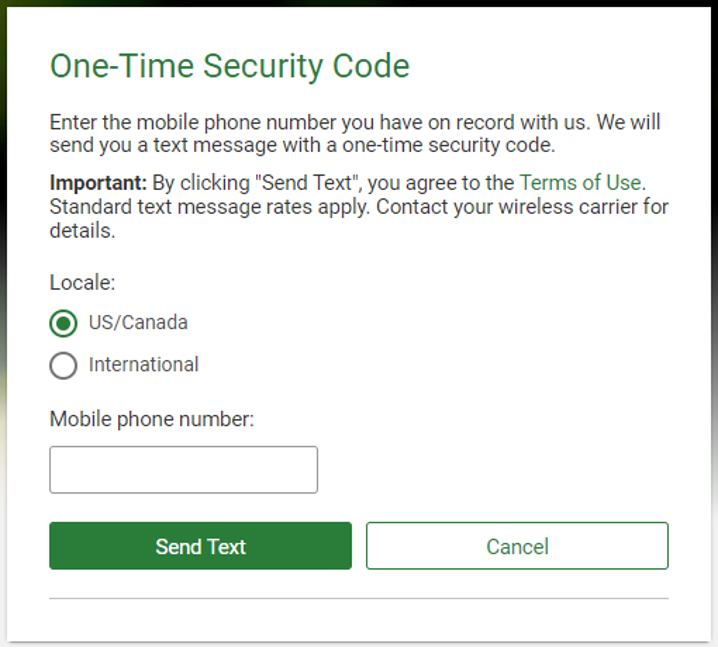
- For Text Message: You will enter your mobile phone number and click Send Text.
NOTE: This phone number must match the mobile number on record for you.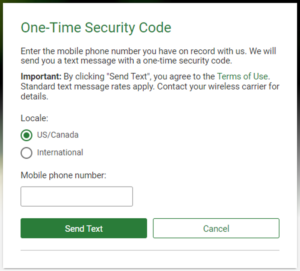
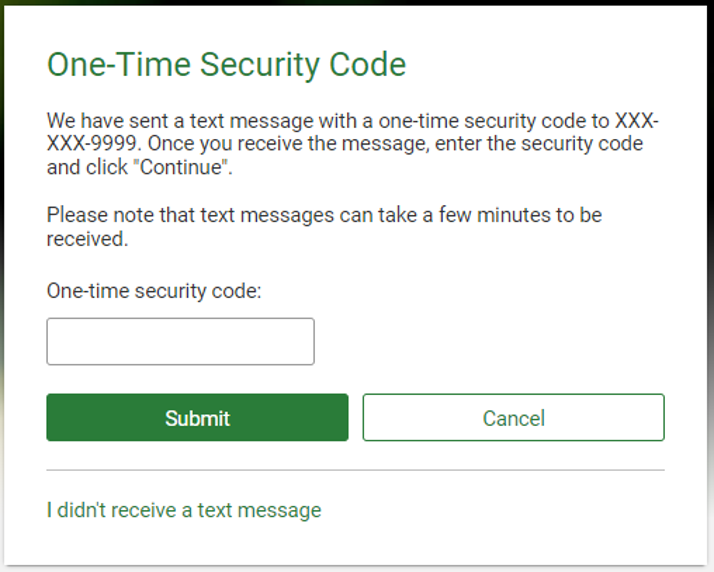
You will receive a one-time security code from SMS 32858. You will enter the 5-digit security code and click Submit.
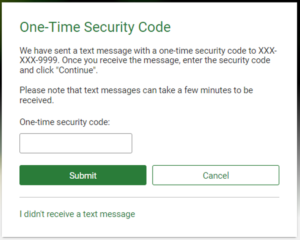
- For Phone call: You will receive a call from Open Bank (213)892-9999. Press 1 to continue in English. You will then say or enter the one-time security code displayed on the screen. Once you enter the security code, click Phone Call Completed.
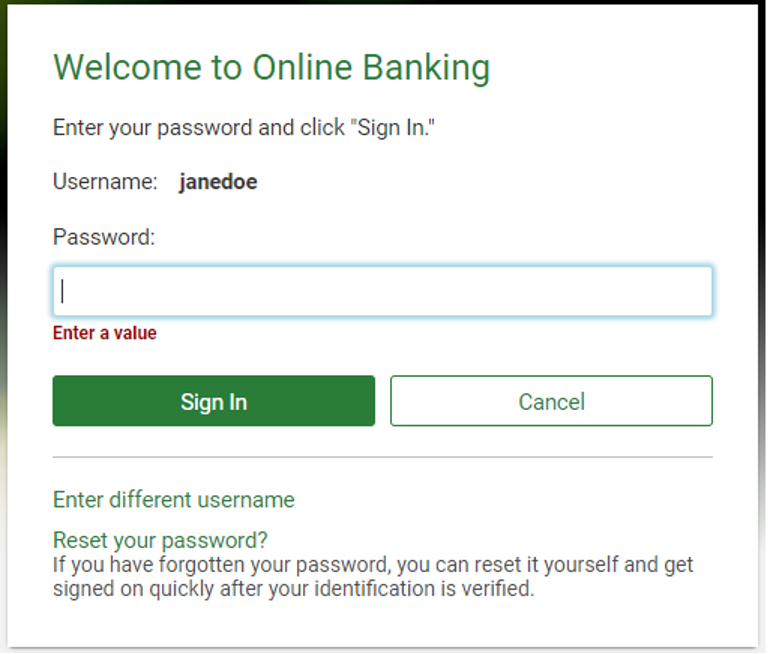
- You will enter the temporary password. (Zip Code + Last 4 SSN/Tax ID)
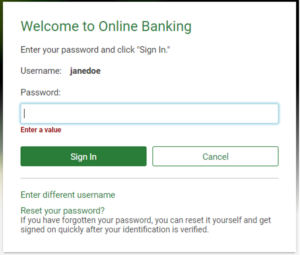
You will be prompted to create a new password. Enter the Temporary Password (Zip Code + Last 4 SSN/Tax ID) in the Current Password field.
Enter your new password in the New Password and Confirm Password fields and click Update Password.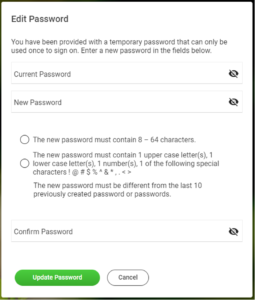
- Congratulations! You have now logged into the new online banking site and can also access your account through the mobile app. Remember to delete the old app and download the new one from the App Store / Google Play Store.


If you experience any issues or have any questions, please call (213) 593-4895 for assistance.
Additional Information
Downtime
Refer to the system and service unavailability schedule below, Unless specified below, access to systems will be unavailable by 5:00 PM. Access will be restored for most services by Tuesday, November 12, 2024. For more detailed information on restored services, please visit our website at www.myopenbank.com/upgrade.
| November 4, 2024 | November 7, 2024 | November 8, 2024 |
|---|---|---|
| Online Banking enrollment (by 6:00 AM) Mobile Banking enrollment (by 6:00 AM) External Transfer (by 12:00 AM) | Bill Pay (by 12:00 AM) Zelle (by 12:00 AM) | Online Banking Access Account History eStatements Internal Transfers Stop Payments Mobile Banking Access Mobile Deposit (by 11:00 AM) Quickbooks/Quicken (Intuit) |
*ATTENTION: Quickbooks & Quicken Users – To ensure a smooth transition, please review our website at www.myopenbank.com/quickbooks-and-quicken-users/ for action you must take.
Post Upgrade To-Do List
- Set up account alerts
- Create account nicknames
- Set up external transfer account
- Download the new Open Bank mobile app

- Set up your connection to QuickBooks & Quicken
Features no longer available after the system upgrade
| Feature | Alternative |
|---|---|
| Mobile Banking - Fast Balance | Log into online or mobile banking to view your account balances. |
| Mobile Banking – Auto Capture | Select the camera icon to capture the check image. |


